Blog ·
Why your cover looks blurry, and when resizing won't fix it
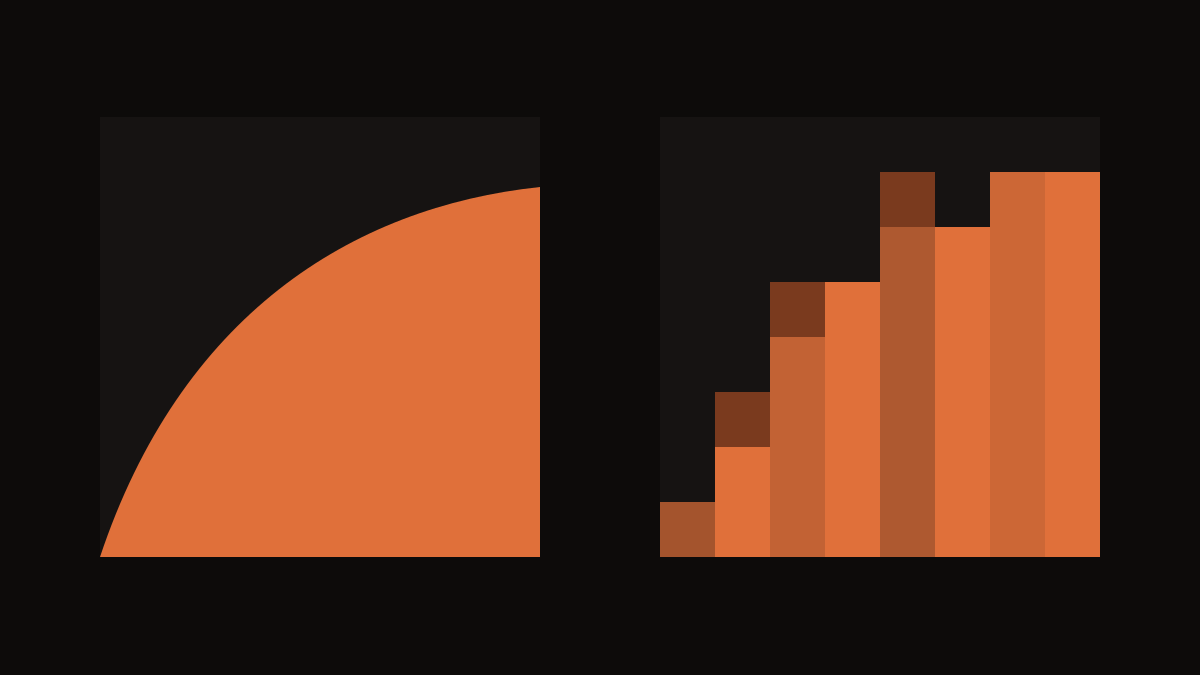
If your cover looks soft or blocky, making the file bigger will rarely fix it. Three different things get called "resolution": the pixel dimensions written into the file, the real detail the picture contains, and damage from how the file was saved. Each has a different cause and a different fix. Find out which one you are dealing with before you export again.
Dimensions, detail and format
Dimensions are the width and height in pixels, for example 3000 by 3000. They tell you how big the file is, not how sharp it is.
Native detail is how much real information the picture holds: the fine edges of hair, texture of fabric, small lettering. It is set when the image is made, by the camera, the canvas or the size it was drawn or generated at. You cannot add it later by resizing.
Format and compression are how the file was saved. Heavy JPG compression, repeated re-saving, and screenshots throw information away and add blocks and smears, especially around edges and in smooth gradients.
Our sizes guide has a short preflight that checks all three before you upload.
Original, compressed, enlarged
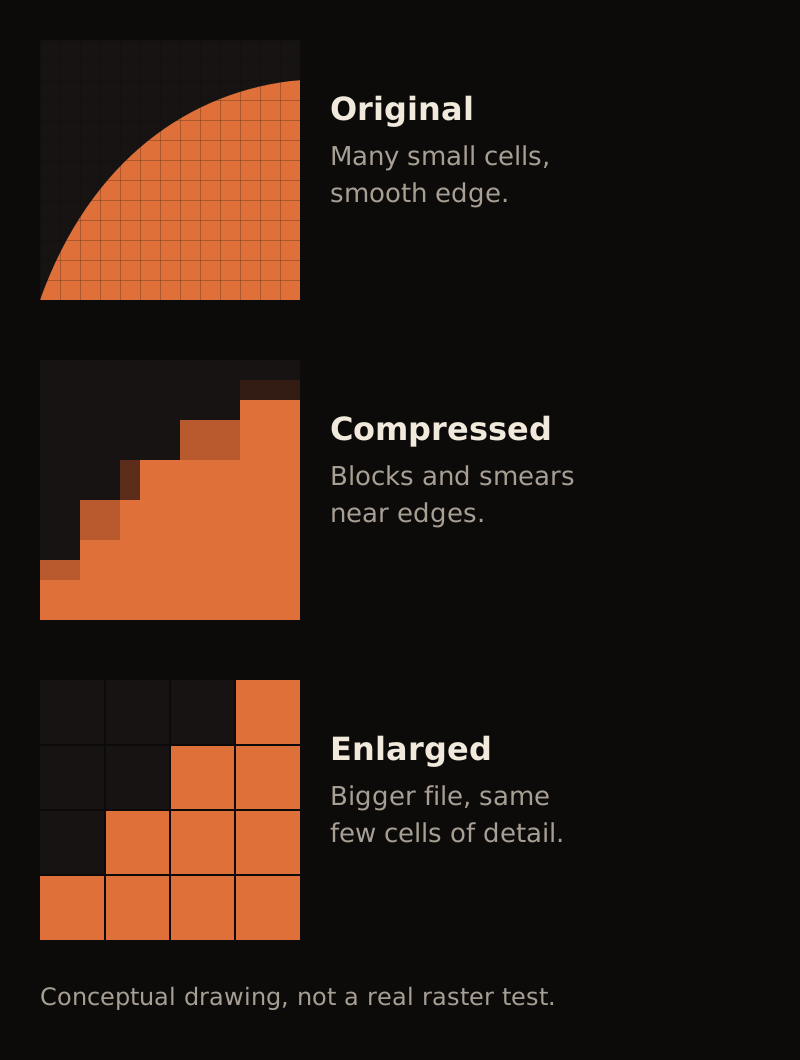
The drawing above is a conceptual illustration made of vector squares, not a test on a real image. It shows the same edge three ways at the same scale:
- Original: many small cells; the curve looks smooth.
- Compressed: the cells are grouped into blotchy blocks, with smeared colour near the edge.
- Enlarged from a small copy: the file now has more pixels, but each original cell has simply been stretched into a bigger one. The edge is no more detailed than before; it is just larger and softer.
That last case is why stores warn against it. Spotify says not to upscale, and Apple's asset guide says not to enlarge a smaller image to reach a minimum and rejects excessively blurry or pixelated images.
Where soft covers usually come from
- Screenshots. A screenshot captures the image at the size it was on your screen, not the size of the original, and often adds the screen's own scaling.
- Messaging apps and social uploads. Many compress images heavily when you send or post them. A cover saved back from a chat is often a smaller, compressed copy.
- Tight crops. Cropping a small area of a photo and exporting it at full size is the same as enlarging it.
- Repeated re-saving. Each JPG save at lower quality loses more.
- Small source art. A drawing or render made small and exported large.
Inspect the actual delivery file
Do not judge sharpness from a preview or a thumbnail. Open the exact file you will upload:
- Check its info panel for dimensions, format and file size.
- View it at 100%, not "fit to screen", and look at a face, an edge or small text.
- Compare it with the original source at 100%. If the source is sharp and the delivery file is not, the problem is in your export or compression. If the source is soft too, the problem is the source.
- Read your distributor's current rules for that file; they differ.
When you need a better source
Resizing will not help if, at 100% zoom on the original:
- Edges are soft or doubled.
- There are visible blocks in skies or shadows.
- Small text is unreadable.
The fix is upstream: find the original file instead of a copy, use a less tight crop, re-photograph or re-export the artwork at its full original size, or remake the image larger. Sharpening filters can make edges look crisper at a glance, but they do not add detail, and stores can still reject upscaled or pixelated art.
A worked example (illustrative)
An invented artist's cover was sent to her by a friend over a messaging app, then exported at 3000 by 3000. At 100% the shadows are blocky. She asks the friend for the original file instead: it was made at a larger size, and at 100% the shadows are smooth. She exports that, saves once at high quality, and the problem is gone, with no resizing involved.
Copy this check
Delivery file: ____ x ____ px, ____, ____ MB
At 100%: sharp / soft / blocky
Original source at 100%: sharp / soft / blocky
Problem is in: source / export / compression
Fix: find original / less tight crop / save once at high quality / remake larger
This is about sharpness at full size. Whether a cover reads clearly when it is tiny is a different question; our phone check covers that.
Start from the song
If the picture itself needs remaking, Soundae makes cover art from your song. Check whichever file you download against your distributor's rules, as with any source. Start with your song.